How do setup IPMI via bios on a new server
Ansible Configuration
When you first boot the server, IPMI has to be enabled and assigned an IP address.
We use a non-routable IP address so the only way to connect to IPMI is via a machine in the colo itself.
To pick an IP for the new server, grep the host_vars directory in our inventory
for ipmi_address to see the currently assigned address and pick the next
incrementally from the output.
Create a console stanza in the new server’s host_vars yaml file and push to
the console server so a server-console user is created.
Bios Setup
Below are the screen shots of the bios and their settings. Be sure to use the IP address you picked in the step above. not the one in the screen shot below.
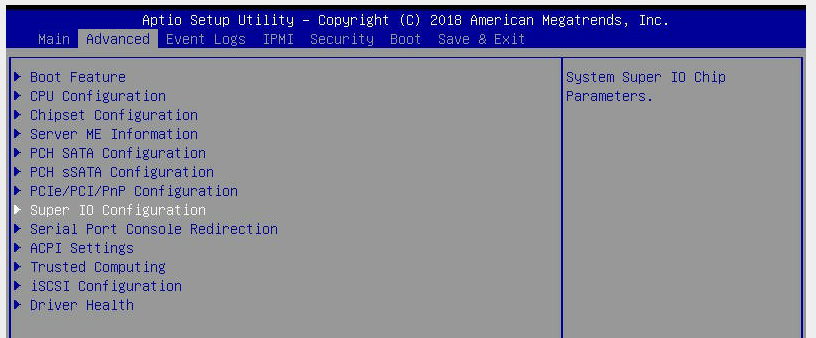
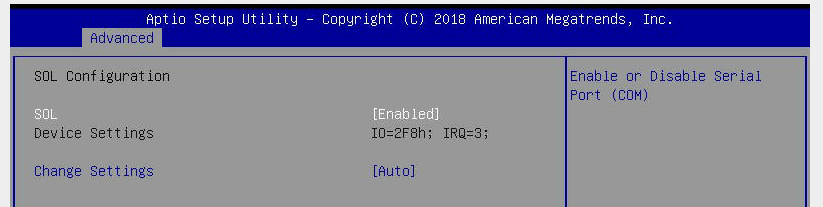 If there are two ports, only enable the SOL one.
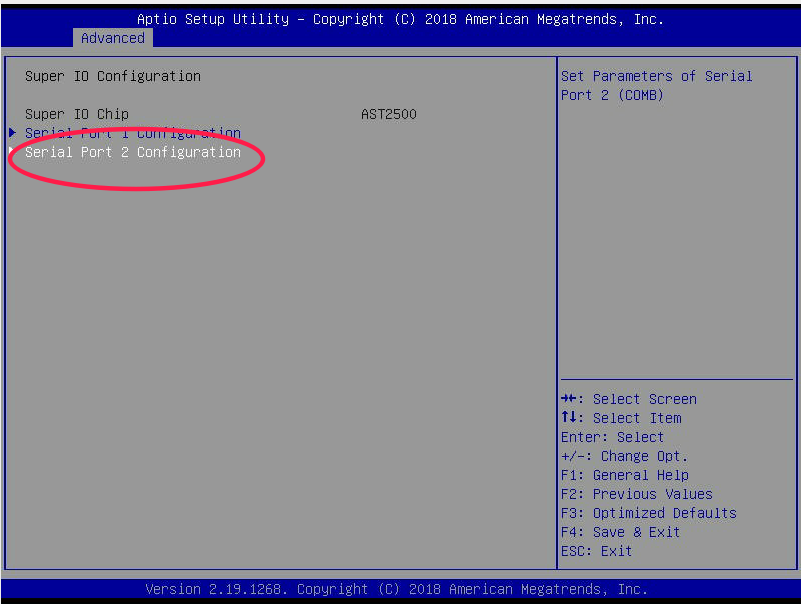
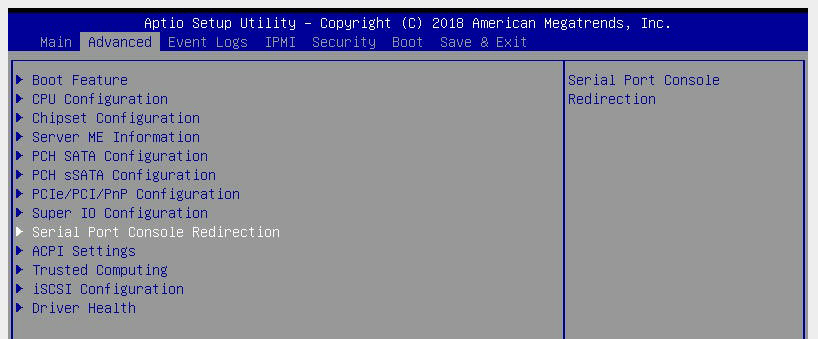
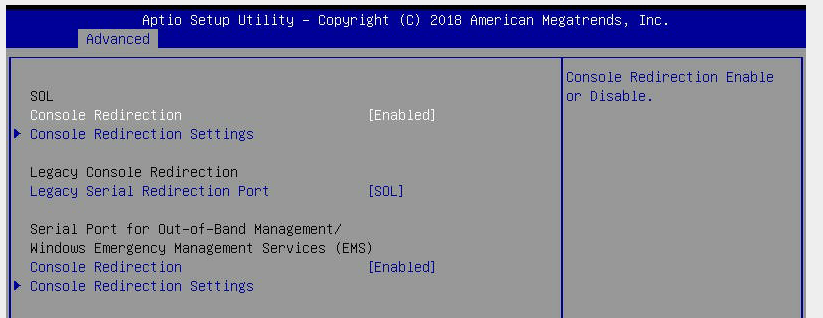 If there are two ports, only enable the SOL one.
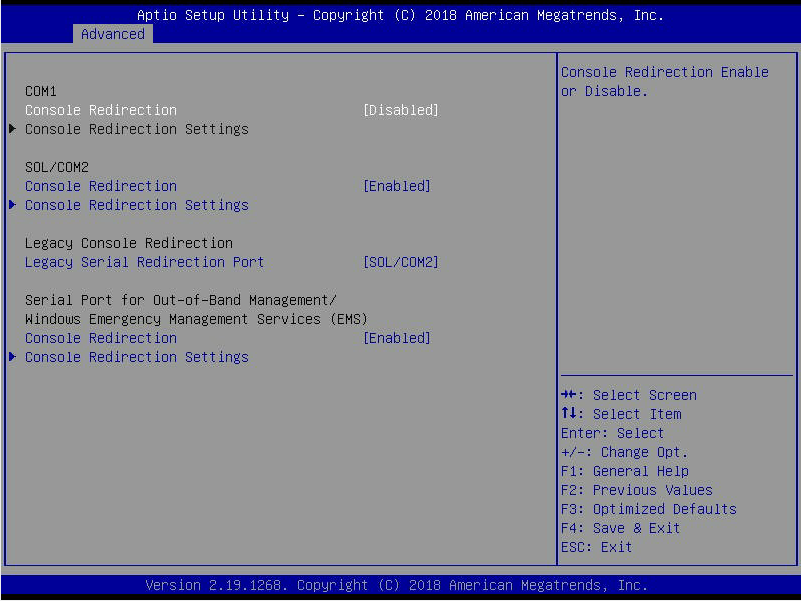
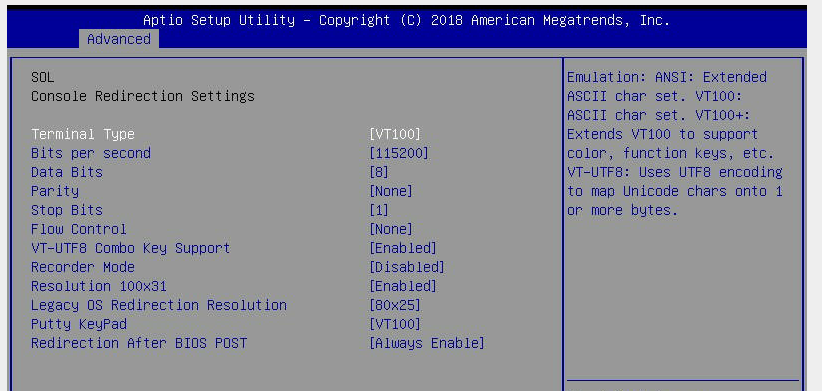
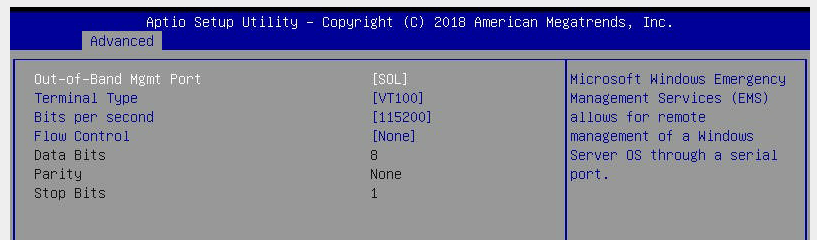
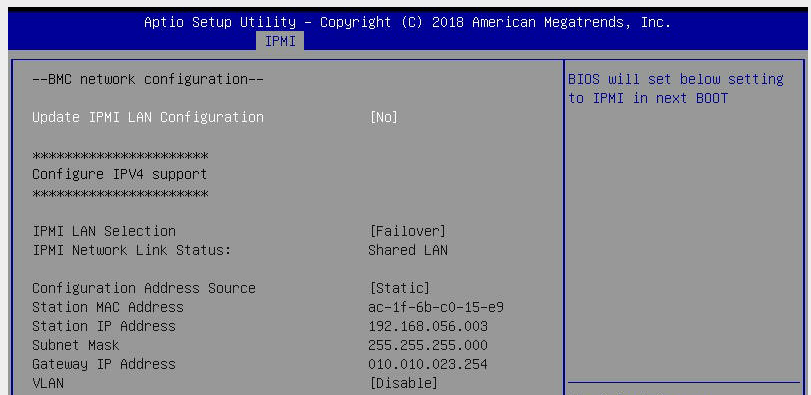
IPMI Configuration
Now, you can access the IPMI web configuration. But, you have to access it from a non-routable IP address in the cabinet.
Our console server is setup to provide that access. You can use ssh and port
forwarding to set that up: ssh CONSOLE-SERVER -L 8443:IPMI-IP-ADDRESS:443.
For example, if you server’s name is jose, and the IP is 192.168.56.12, then
you would run on your own laptop:
ssh jose-console@console.mayfirst.org -L 8443:192.168.56.12:443
Then, you would enter on your laptop’s browser: https://localhost:8443
You will have to click through the security exceptions.
The default user pass is: ADMIN/ADMIN - case sensitive! Or, on newer computers, it has a unique password that is printed on a sticker or service tag on the side of the machine.
Here are some important changes:
- Configuration -> Users
- Change password for ADMIN user. NOTE make password 16 characters or less and keep out weird characters. It is possible to lock yourself out with this step.
- Configuration -> Port
- Only check off Web port (80), Web port (443), Virtual Machine port (623) and Ikvm server port (5900)
Now, you can access the “monitor” by clicking Remove Control -> iKVM/HTML5
Accessing via serial over lan (sol)
If you configure everything via ansible, a shell script called sol will be
created which you can execute to access the server. The script should have
something along these lines in it:
ipmiutil sol -V 4 -a -N 192.168.56.3 -U ADMIN -Y
Grub
ansible should properly handle grub setup on the new physical host, but… this is what should be there.
After installing linux, edit /etc/default/grub and change GRUB_CMDLINE_LINUX to:
GRUB_CMDLINE_LINUX="console=tty0 console=ttyS1,115200n8"
NOTE! This is different from the norm - we want ttyS1 not ttyS0 like we typically put in there.
And add:
GRUB_TERMINAL=serial
GRUB_SERIAL_COMMAND="serial --unit0 --word=8 --parity=no --stop=1"